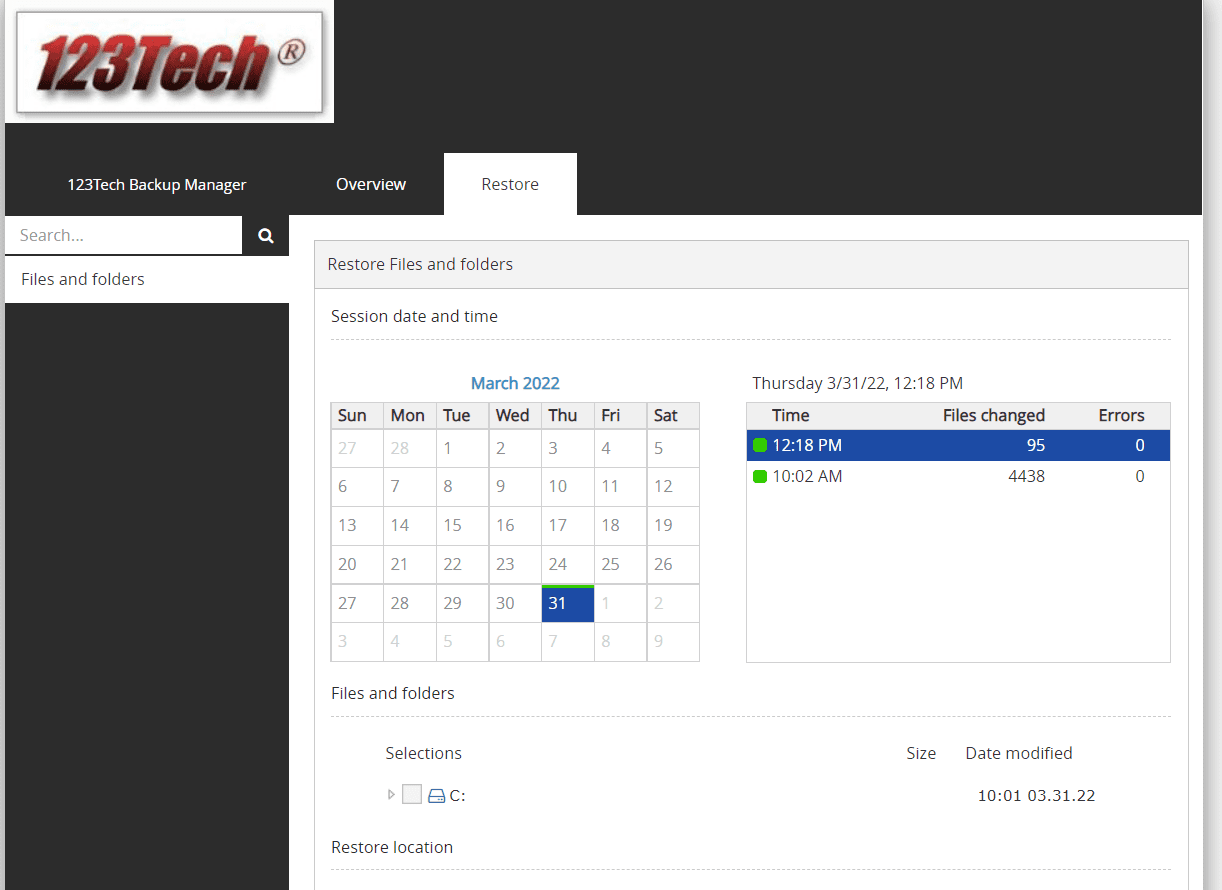
Documents Backup – restore data
[highlight style=”green”] QUICK GUIDE Data Restore: (in Windows OS): Select START, type “backup”, select Backup Manager, once Backup Manager is open, you can choose to Restore “some” or all of the data from a particular backup[/highlight]
[divider style=”e.g. blank, dotted, solid, double” padding_top=”10px” color=”#cccccc” thickness=”1″ padding_bottom=”10px”][/divider]
Documents Backup guide
The Documents Backup only is a purpose-built data protection solution for Windows workstations and laptops. It provides highly automated data protection of key office files (every Word doc, spreadsheet, presentation, text file, .pdf, .csv) at a price point similar to antivirus software.
- Backups run twice a day without user interference
- (At night between 9 pm – 6 am; At lunchtime between 12 noon – 2 pm)
- All backup settings are predefined and cannot be changed
- Users can recover selected files and folders at any time
- There is no limit to the size of files that can be backed up
How it works
There is just one data source for backup and recovery – Files & Folders (not named explicitly in the user interface). All local drives on the device are scanned for eligible files which are detected automatically by the system (see the full list of supported file types and the list of exclusions ).
To open the Backup Manager on your computer, click on the Start button in Windows and type “backup”
One of the options listed will be Backup Manager (if it was installed on your computer)
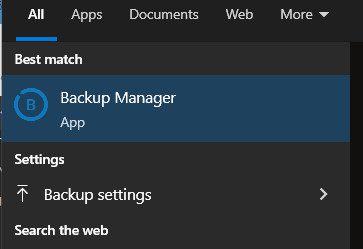
Click On the Backup Manager to launch the Dashboard